
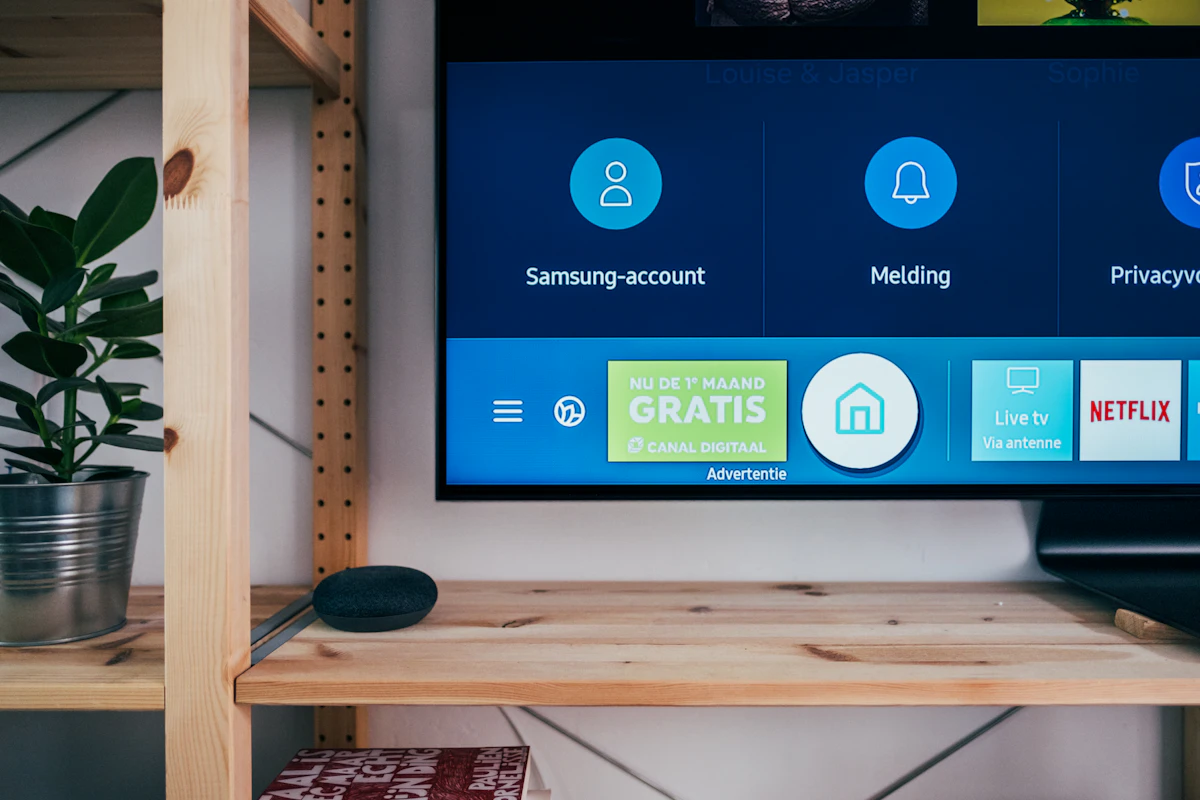
You've got a new smart TV, or maybe you just reset your old one, and now Prime Video is asking for some code you've never seen before. Or you're helping a family member set up their TV and you're staring at a six-character code wondering where it even goes.
I get it. Amazon doesn't make this process obvious, and the URL "amazon.com/mytv" looks like it could be a typo or a scam. (It's not — it's the real deal, just poorly explained by Amazon themselves.)
Here's the honest truth: activating your TV on Amazon MyTV is a two-minute process once you know where to look. The problem is that Amazon buries the instructions, and every TV brand shows the code differently. So let me walk you through it properly.

What Is Amazon.com/MyTV, Exactly?
Amazon.com/mytv is Amazon's official device activation portal [citation:2][citation:17]. When you install the Prime Video app on a smart TV, streaming stick, or game console, Amazon needs to verify that you're the account owner. Instead of making you type your email and password with a TV remote (which is genuinely painful), they generate a short code on your TV screen.
You take that code, go to amazon.com/mytv on your phone or laptop, sign in, and enter it. That links your TV to your Amazon account without any remote-typing [citation:2].
The codes are usually 5 to 7 characters and expire after about 10 to 15 minutes, so you need to move reasonably quickly [citation:2][citation:17].
The Basic Activation Process (Works on Almost Any Device)
Before I get into device-specific quirks, here's the universal flow that works for basically everything — Samsung, LG, Sony, Fire TV, Roku, Apple TV, PlayStation, Xbox [citation:7][citation:12].
Fire up your TV and open the Amazon Prime Video app. If it's not installed, grab it from your TV's app store first [citation:6].
On the sign-in screen, choose the option that says something like "Register on the Amazon website" or "Sign in with a web browser." Don't pick the email/password option — that's the hard way.
A short code will appear — usually 6 characters, sometimes 5 or 7 depending on your device [citation:2][citation:5]. It might look something like KUNYJ7 or AB12CD.
Keep this screen open. Don't navigate away from it, or you'll have to start over.
On a separate device — your phone, tablet, or laptop — open a browser and go to amazon.com/mytv [citation:17].
Sign in with the Amazon account that has your Prime subscription. This part matters — if you sign into a different Amazon account, the activation won't work [citation:6].
Type the code from your TV screen into the field on the page. Double-check the characters — some can look similar (like O and 0, or I and 1) [citation:8].
Click Register Device or Submit. If everything checks out, you'll get a confirmation message.
Your TV should automatically detect the activation within about 30 seconds and log you in [citation:7]. If it doesn't refresh on its own, close and reopen the Prime Video app.
You're In
Once activated, your TV stays linked to your Amazon account unless you manually deregister it or factory reset the TV [citation:7]. You won't have to do this again.

Device-Specific Notes
Different TVs hide the activation option in different places. Here's where to find it on the most common devices:
Samsung Smart TV
Press Home, go to Apps, and open Prime Video. Choose "Register on the Amazon Website." The code will appear on screen [citation:7].
LG Smart TV
From the launcher bar, open Prime Video. Select Sign In, then "Register on the Amazon Website" [citation:7].
Sony (Android TV / Google TV)
Open Prime Video from your apps list. You might need to sign into your Google account first. The web code login typically works smoother here than typing credentials with the remote [citation:6].
Fire TV Stick
Fire TV is made by Amazon, so it usually links automatically during setup. If you need to re-link, go to Settings → My Account → Amazon Account, deregister, then reopen Prime Video to get a fresh code [citation:7].
Roku
Install the Amazon Video channel, open it, and select Sign In. A 6-digit code will appear — enter it at amazon.com/mytv [citation:7].
Apple TV
Download Prime Video from the App Store, open it, and choose Sign In. The activation code will display on your TV [citation:7].
QR Code: The Faster Alternative
Many newer TVs now show a QR code alongside the text code. If you see one, you can just scan it with your phone's camera, and it'll take you straight to the activation page with the code pre-filled [citation:4][citation:6].
This is honestly the best way to do it — no typing, no misreading characters. If your TV offers the QR option, use it.
Pro Tip: Can't Find the Code Entry Field?
If amazon.com/mytv loads but you don't see a box to enter the code, try going directly to amazon.com/gp/video/ontv/code instead. Some users report that the main /mytv page sometimes redirects to the Amazon homepage instead of showing the code entry form [citation:5][citation:11].
Troubleshooting: When Activation Won't Work
Code expired? Close and reopen the Prime Video app on your TV to generate a fresh one. Enter it immediately [citation:2][citation:4].
Wrong account? Check that you're signed into the Amazon account with your Prime subscription. If you have multiple accounts, this is a common mix-up [citation:6].
Code not showing up at all? Restart the Prime Video app or reboot your TV. Also make sure the app is updated to the latest version [citation:1][citation:4].
TV not refreshing after entering the code? Give it a minute, then close and reopen the Prime Video app manually. If it still doesn't work, check your TV's internet connection [citation:8].
Frequently Asked Questions
Is amazon.com/mytv the official Amazon site?
Yes. Amazon.com/mytv is Amazon's legitimate device activation portal. It's not a scam site — it's just poorly documented by Amazon. Always make sure you're on the real amazon.com domain before entering any code [citation:2].
Do I need Amazon Prime to activate a device?
You need an Amazon account to sign in, but you don't strictly need a Prime subscription to link a device. However, you'll need Prime (or a Prime Video subscription) to actually watch most content [citation:2].
Can I activate multiple TVs on one Amazon account?
Yes. Amazon allows multiple devices on a single account. Just repeat the activation process for each TV — get a new code on each one and enter it at amazon.com/mytv separately [citation:2][citation:7].
How long does the activation code last?
Usually 10 to 15 minutes. After that, it expires and you'll need to request a fresh one by reopening the Prime Video app on your TV [citation:2][citation:4].
My TV shows a QR code instead of a text code. What do I do?
Scan the QR code with your phone's camera. It should open the activation page with the code already filled in. If that doesn't work, look for a small "Enter code manually" option on the TV screen [citation:4].
How do I remove a TV from my Amazon account?
In the Prime Video app on the TV, go to Settings and choose "Deregister this device." Alternatively, you can manage devices from your Amazon account settings under "Manage Your Content and Devices" [citation:6].
Related Guides on This Blog
The Short Version
Open Prime Video on your TV, choose the web registration option, note the code, go to amazon.com/mytv on your phone, sign in, and enter the code. That's it. The whole process takes about two minutes if you don't overthink it.
If the code expires, just restart the app for a fresh one. If the page won't load properly, try the direct link at amazon.com/gp/video/ontv/code. And if you have a QR code option, use that — it's faster and eliminates typing errors entirely.